
We’re excited to introduce a foundational upgrade to our platform: the Business Rule Engine – a smarter, more flexible way to manage and control your operational reality.
This upgrade empowers you to tailor a digital twin of your yard to match your own terminology, roles, and specialized workflows—without requiring engineering support.
What's changed?
Until now, our platform followed a one-size-fits-all approach. While functional, it often led to extended onboarding and complications – because not every business runs the same way.
This is why we’ve removed the booking types and replaced them with a dynamic configuration layer that adapts to your operational needs.
Settings—such as confirmation requirements, minimum notification times, and more—are now centralized in one place, making it easier to manage.
| Previously | Now |
| If multiple ramp assignments were made, then any ramp was accepted. | The ramp with the higher priority is selected. |
| If slot type and dock-partner assignment did not match one ramp, then a special request was triggered. | Ramp is decided by priority. The system no longer triggers a special request in this case |
🙋 Do you need to take action?
No — your existing settings will be automatically transferred to the new Business Rule Engine.
How does it work?
For each and every transport, TradeLink checks all rules from highest to lowest priority and applies the first matching rule for each setting.
- Default settings: The baseline. Applied when no other rules match
-
Top-level rule: A specific scenario that overrides the defaSub-rule: An exception inside a top-level rule. Sub-rules are checked before their parent; if a sub-rule matches, it wins.
Think of rules like: If [condition], then [action].
Example structure
If Movement type = Incoming goods → Assign to Ramp 1 and Ramp 2
If also Pallet type = Euro pallet → (sub-rule) Assign to Ramp 2
If also Carrier = Spedition GmBH → (more specific sub-rule) Assign to Ramp 2
How to get there:
Here's a quick video guide on how to get started with the Business Rule Engine
Find the “Transport configuration” in the site settings.
On the left, you'll see an arrow representing the priority hierarchy — from lowest to highest. You can also drag and drop the rules to set their priority – which rule should be applied first. The rule at the top takes precedence.
At the bottom are the default settings, which serve as the base layer.
In the top right you can create a new top-layer rule via the "Add new rule" button.

Default Settings
Default settings are rules, that are applied automatically when no matching rule is found or no other rules were created. You can easily edit them by clicking the grey box.

Top-level rules
Top-Level rules are created for specific conditions that should override the default settings.
🔎 Give your rule a simple name that distinguishes it from others and avoids confusion.

Sub-level rules
Sub-level rules allow you to create exceptions within your top-level rules. This lets you keep the number of rules low, but still cover all important cases.
Again, sub-level rules will be checked before top-level rules. If a sub-level rule applies to a transport it will take precedence over the top-level rule. If no sub-level rules apply, the top-level rule will be selected.
To create a sub-rule for one of your top-level rules, click on the three dots next to the top-level rule and select “Add sub-rule”. This will open the top-level rule, for which you can now add further conditions and settings.
🔎 You can also create sub-level rules for sub-level rules.


Common use cases
-
Dock bound partners
The Configuration System allows you to define which ramp specific partners are allowed to book.

-
Minimum notice period
Define specific minimum notification times for certain partners before a booking can be made – are now configurable per partner. Trusted partners can have shorter lead times, giving them more flexibility to book late without causing disruption.

-
Auto Accept per Partner
Partners you consider reliable can be accepted automatically. Define which specific partners (e.g. trusted forwarders) are automatically accepted when they book. This helps streamline operations for known and reliable partners.

-
Slot Length Calculation
In addition, slot durations are now dynamically calculated based on article category or what's actually being transported. This means more accurate slot planning, better resource allocation, and less waiting time at docks

Visualize Transport Rules
If you would like to more closely understand which rules were applied to a specific advice and why, navigate to the calendar, click on an advice, and then open the three-dot menu to select "Visualize Transport Configuration".
This feature provides greater clarity and traceability—just one example of many improvements we've made to enhance transparency and usability.


Example
Testfactory runs a mid-size yard with 5 docks. They serve grocery retailers and fashion suppliers. To keep things smooth, they use the Business Rule Engine to define a small set of defaults and a few targeted exceptions.
For most of their transports, the following default settings apply:-
- Minimum Notice Period: 24 hours
-
Confirmation of booking requests: manual
-
Assigned Docks: Dock 2 - Dock 5
However, there are some scenarios, for which there need to be exceptions.
Scenario 1
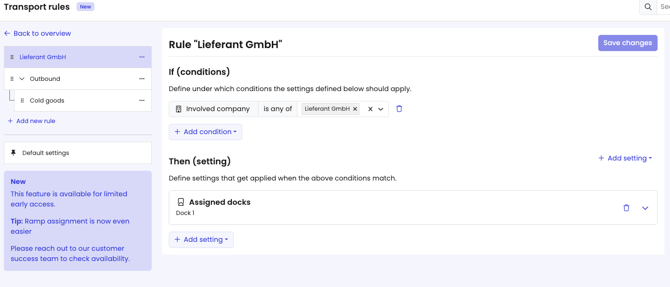
Testfactory's most important supplier is "Lieferant GmbH". To guarantee free slots, Testfactory would like to exclusively reserve Dock 1 for them. No other partner should be able to book on this dock.
1. Select all docks except Dock 1 in the default settings.
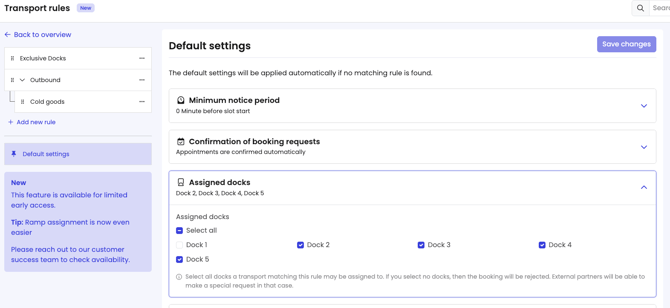
2. Create a top-level rule and select "Dock 1" as assigned dock for "Involved company = Lieferant GmbH"
Scenario 2
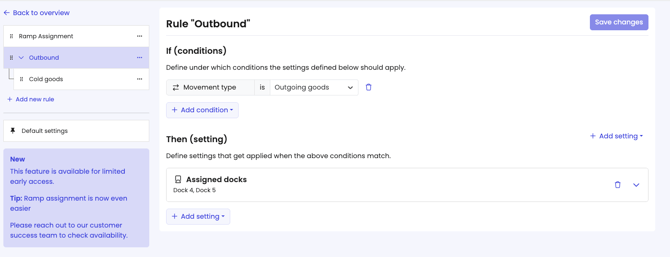
For their outbound operations, Testfactory would like to use only Dock 4 and Dock 5 since these are closest to their packing station. For the transport of cold goods however, Dock 2 should be assigned since this is closest to the cooling systems. Because cold goods require more planning, Testfactory would also like to increase the minimum notice period to 3 business days in this case.
1. Create a top level rule "Outbound". Add the condition "movement type = outbound" and select Dock 4 and Dock 5. Outbound transports will now be assigned to Dock 4 and Dock 5.
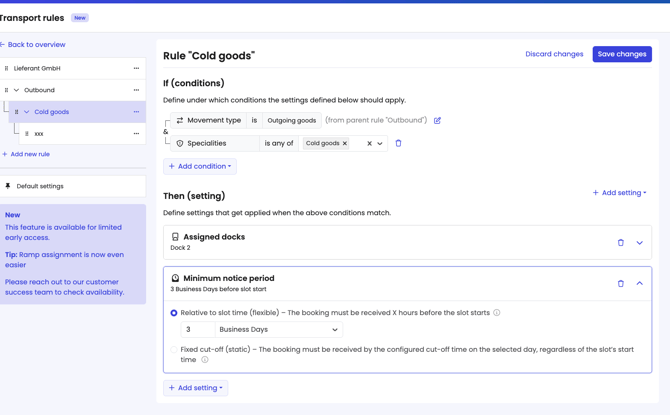
2. As an exception to this rule, add a sub-rule "Cold goods. Add the condition "specialities = cold goods" to the already existing condition "movement type = outbound". Select Dock 2 as assigned dock and set the minimum notice period to 3 business days in the settings
Now, if an outbound transport with cold goods is booked, it will be assigned to Dock 2 and the minimum notice period will be 3 business days instead of 24 hours as defined in the default settings.
Scenario 3
In rare occasions, Lieferant GmbH picks up some cold goods from Testfactory. Since Lieferant GmbH are the most important partner and they are very trusted, Testfactory would like to allow them to make bookings up until the same day at noon. They also allow their booking requests to be confirmed automatically.
1. Create a sub-rule for "Cold goods" (from the previous scenario)
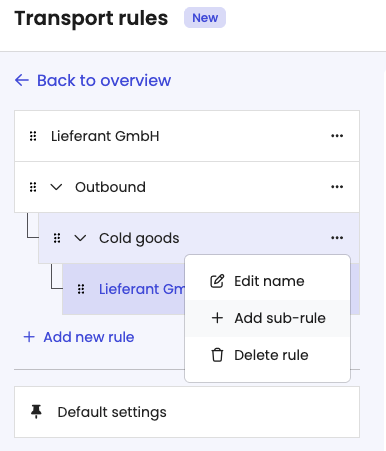
2. Add "Involved company = Lieferant GmbH to the conditions. Then add the fixed cut off time and set the confirmation of booking requests to automatic.
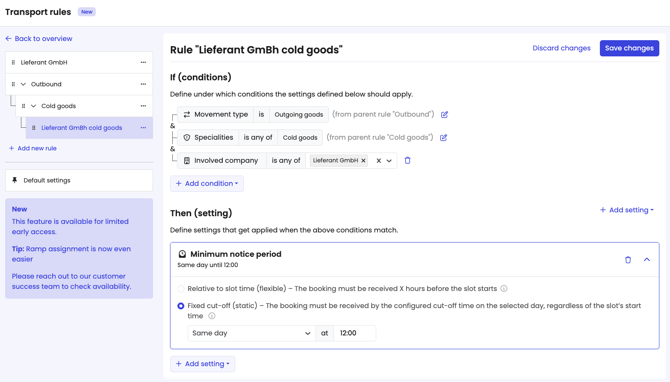
Now, whenever Lieferant GmbH wants to book an outbound transport with cold goods, they will be able to make a booking for the same day until noon and the appointment will be confirmed automatically ("Lieferant GmbH cold goods" rule). They will be assigned to Dock 2 ("Cold Goods" Rule).
Scenario 4
Kunde AG wants to make a booking at Testfactory. They would like to pick up Cold goods. Which rules apply?
- Minimum notice period: 3 business days before slot start
- Assigned Dock: Dock 2
- Confirmation of booking: manual
Why?
All rules are checked by the business rule engine from sub-rules to default settings.
- Minimum notice period & Assigned Dock:
- "Lieferant GmbH cold goods"- Rule does not apply to Kunde AG
- "Cold goods"-Rule applies (Movement type = outbound, Specialties = cold goods) -> Minimum notice period = 3 Business Days before slot start & Assigned dock = Dock 2
- Confirmation of booking:
- "Lieferant GmbH cold goods"- Rule does not apply to Kunde AG
- "Cold goods"-Rule does not contain confirmation of booking settings
- "Outbound"-Rule does not contain confirmation of booking settings
- Default Settings apply because no other rule matched
If you’ve been with us since before 01.08.25, here are more details about the changes made to the configuration system—how it worked before and how it works now. If you have any questions, please feel free to contact us anytime.
|
Setting |
How it used to work |
How it works now (Transport Rules) |
|
Minimum Notice Period |

|

|
|
Confirmation of booking requests |

|

|
|
Dock Assignment |


|

|
|
Slot Duration |

 
|


|
|
Standard Slot Length |


|

|
|
Slot Length Offset |


|

|
|
Status Configuration |


|

|
|
Load Check |


|

|