
What is Deviations Management?
With deviations management, you can optimize your operations and planning by gaining more visibility and transparency into truck arrivals, as well as quickly identify delayed transports reported by your partners.
How to show Delayed Transports in my Calendar?
In order for the delayed transports to be displayed in your calendar and list view, you must first configure this setting in your site settings.
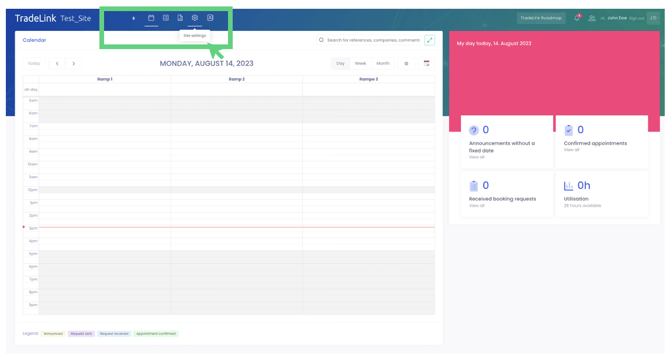
Click Settings > Site Settings > scroll down to "Delays".
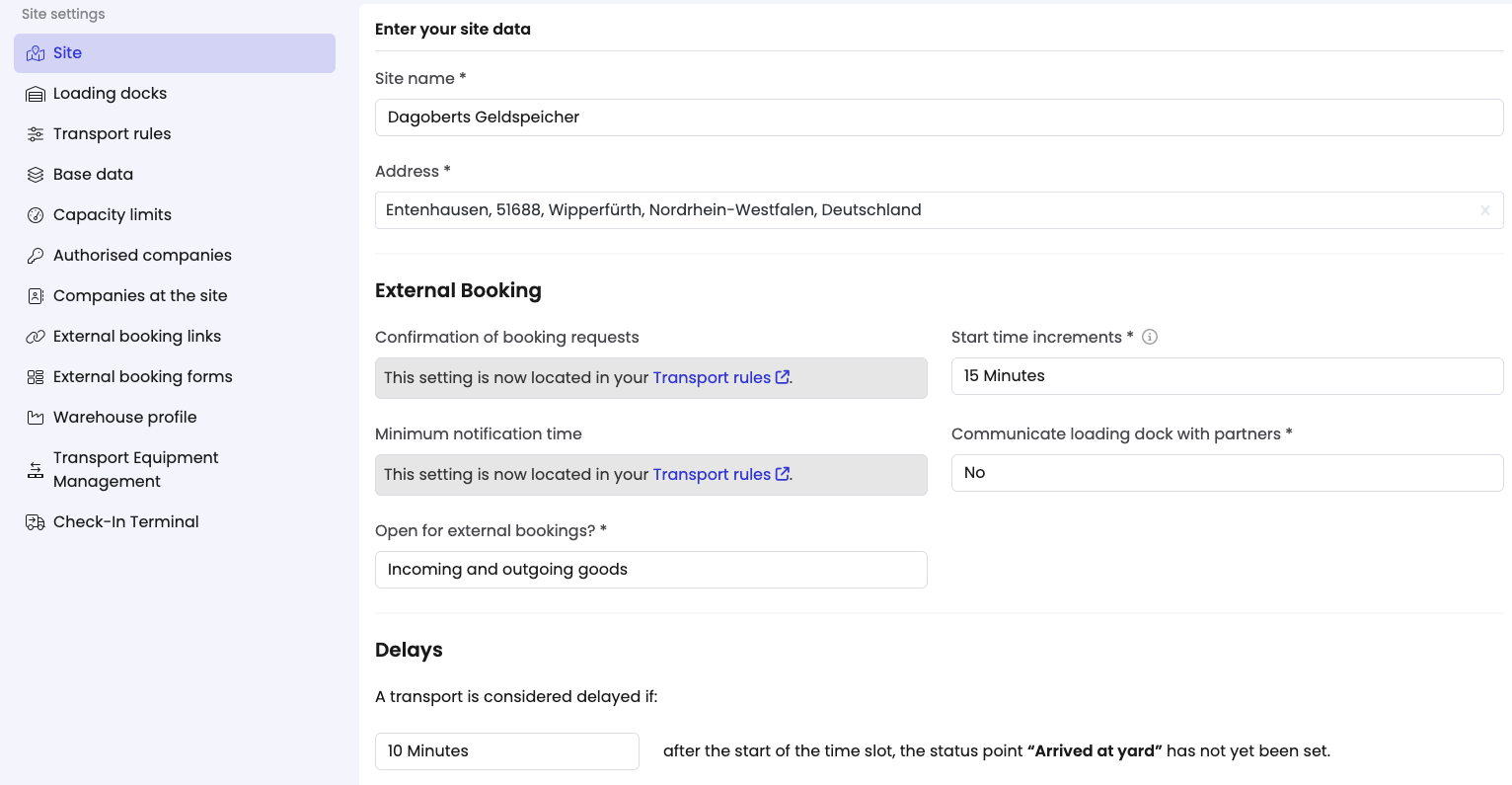
Here you have the option to customize the time of the delay notification. For example, if you set 30 minutes, the transport will be shown to you as “delayed” (with a “red dot”) if 30 minutes after the start of the time slot the status "Arrived at yard" has not yet been set.
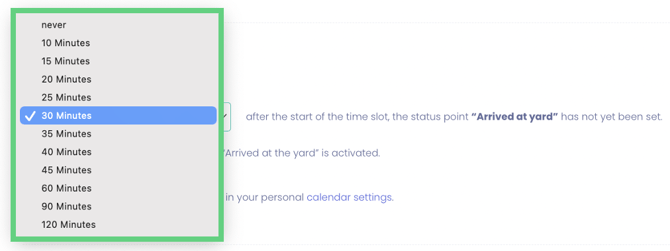
Please note that delays will only appear in your calendar if the settings have been configured with a delay period of X and the "Arrived at the yard" status is enabled in the transport rules.
Additionally, delays will only be displayed (with a "red dot"), if:
-
a transport is late by X minutes at least
-
the advice has not yet been completed, and
-
the "Arrived at Yard" status point has not yet been set
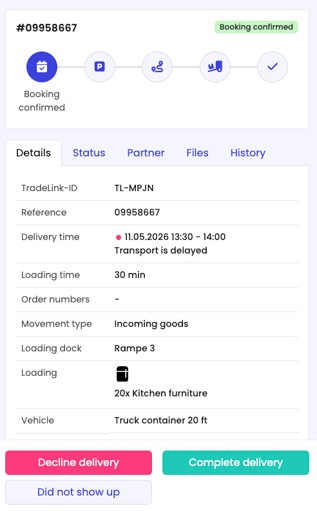
The “red dot” disappears, once the advice is:
-
rescheduled to the future
-
the status points “arrived at yard” is set
-
completed (regarding status points)
Once the respective settings have been set, your partners can report delays for all shipments taking place on the current day and for advices booked in the future.
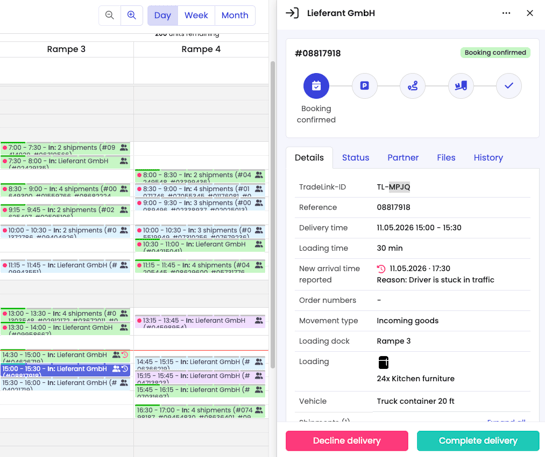
If a Partner reports a delay by setting a new time of arrival, the (new) estimated time of arrival (ETA) will be displayed in your calendar and marked with an icon in the advice. You can then reschedule/accept or decline the booking.
Deviations in the List View
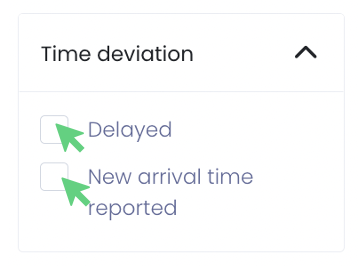
You can also get an overview of all the delayed transports in the list view. Simply filter for "Time deviation" and choose between "Delayed" and "New arrival time reported", or both.
Notifications
You will be notified about delays and deviations via E-mail and In-App Notifications .
Learn more about how to manage your notifications here: Personal Data and Notifications
Your supplier/forwarder didn't show up on the agreed date?
You can use the "No-show" button to remind your partner directly via the Trade-Link platform to make a new appointment.
This is how it works:
-
The truck did not show up for the booked appointment (note: the appointment must be in the past and must have been confirmed in advance).
-
Click on the originally agreed appointment in the calendar.
-
Mark the appointment as "No show".
-
Optionally, add a message and choose whether you want to inform your partners (they will then receive an automated email asking them to reschedule).
-
You can also view the reliability of your partners in the reporting dashboard.
IMPORTANT: Shipments marked as "Did not arrive" cannot be reset. It is recommended that you wait until the end of the workday to set the shipment's status, in case it does arrive at the yard after all.