
You can always make changes to your bookings after having created them.
Making changes to a booking
To be able to edit an existing booking, you need to call it up in TradeLink and open the edit modal. The steps to do this are explained here:
💡How do I find my booking in my TradeLink Account?
💡How do I edit a booking (if I have a TradeLink account)
Once the booking is confirmed, you can make edits to said booking.
You can..
-
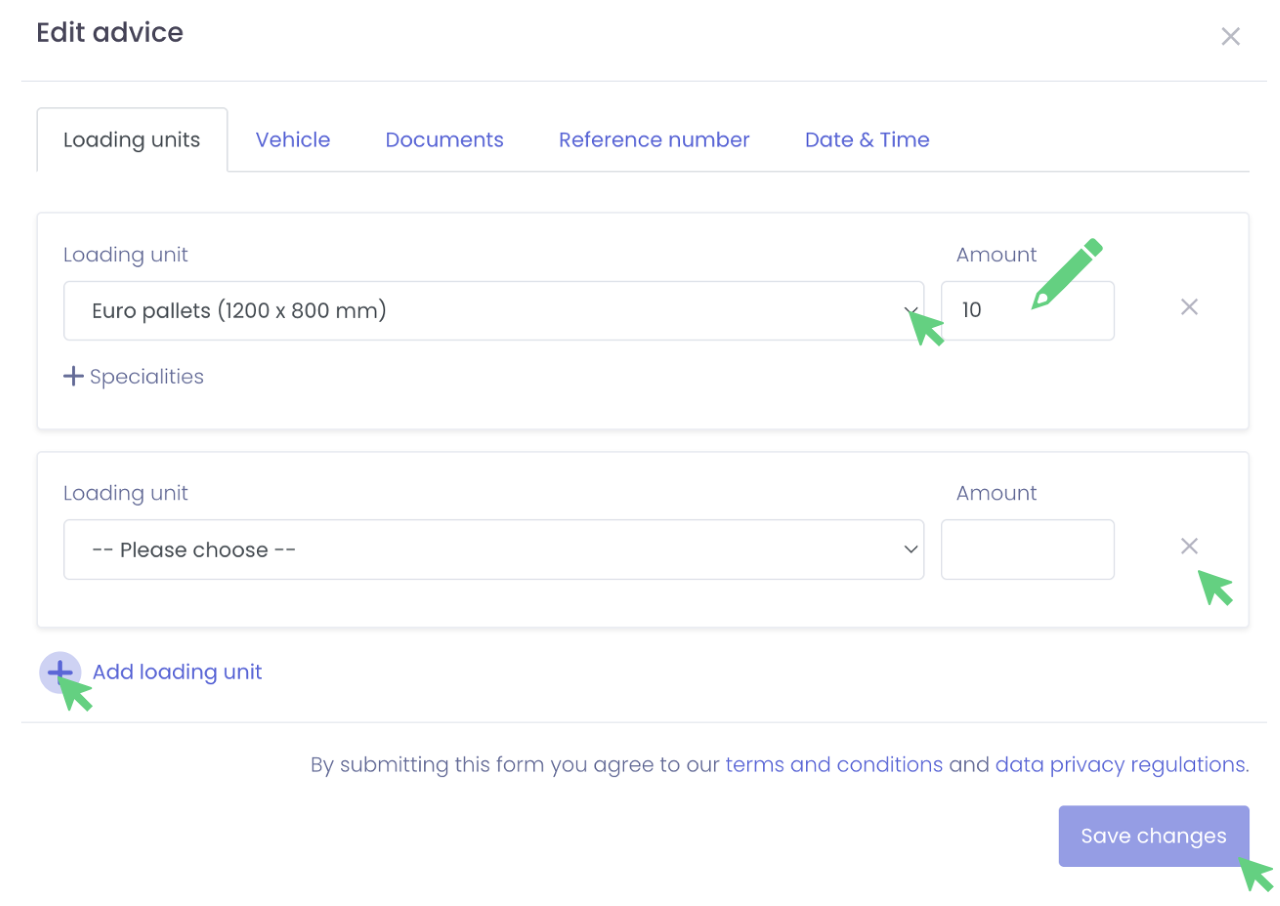
change the loading unit by selecting a different one in the drop-down menu and changing the quantity under “Amount”
-
add more loading units by clicking on "Add loading units"
-
remove loading units by clicking on the X on the right side
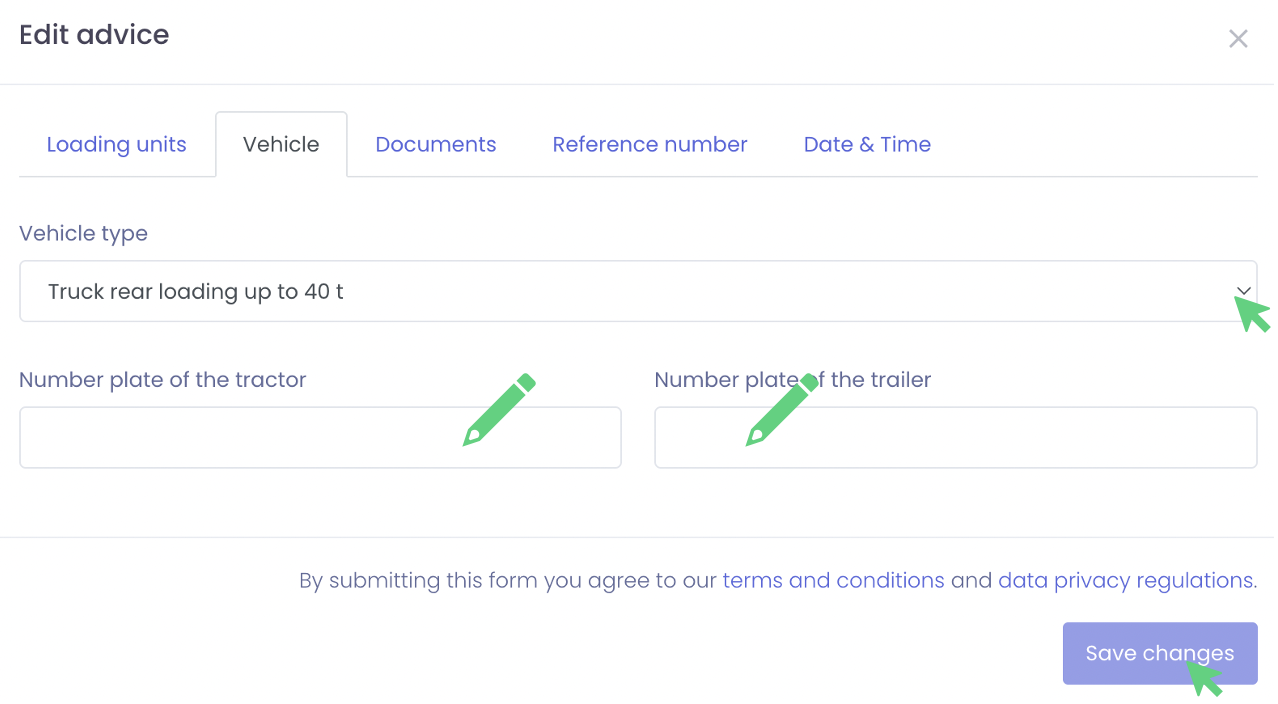
You can also edit the vehicle type and add further information.
When you click on "Documents", you can delete a file or upload a new one. In this article you will learn how this works in detail:
💡How can I add documents to my booking through my TradeLink account?
The reference number of the booking can be managed under the "Reference number" tab. If changes are to be made subsequently with regard to the time window, this is done under the "Date & time" tab. The selection of a new time window is identical to step 6 of the booking process.
💡Booking flow explained using the example of an inbound transport
Click on "Save changes" to apply the changes made to your booking. The changes can be tracked in the change log by all parties involved to create the best possible transparency.
You know now how to make changes to your booking once it has been created.