
What rights are associated with the different user roles?
This article explains which user roles you can assign to your colleagues and how you can change them later on.
-1679414772-Oct-10-2025-09-31-24-6284-AM.png)
What rights are associated with the different user roles?
How do I customize the user roles of my colleagues?
What rights are associated with the different user roles?
There are three different user roles to choose from when inviting your colleagues via the “user management” setting. The roles are associated with the following rights:
-
Company owner: administration of all company settings and contact for TradeLink
-
Company admin: administration of all company settings
-
Standard user: no access to company settings, optional access to user management
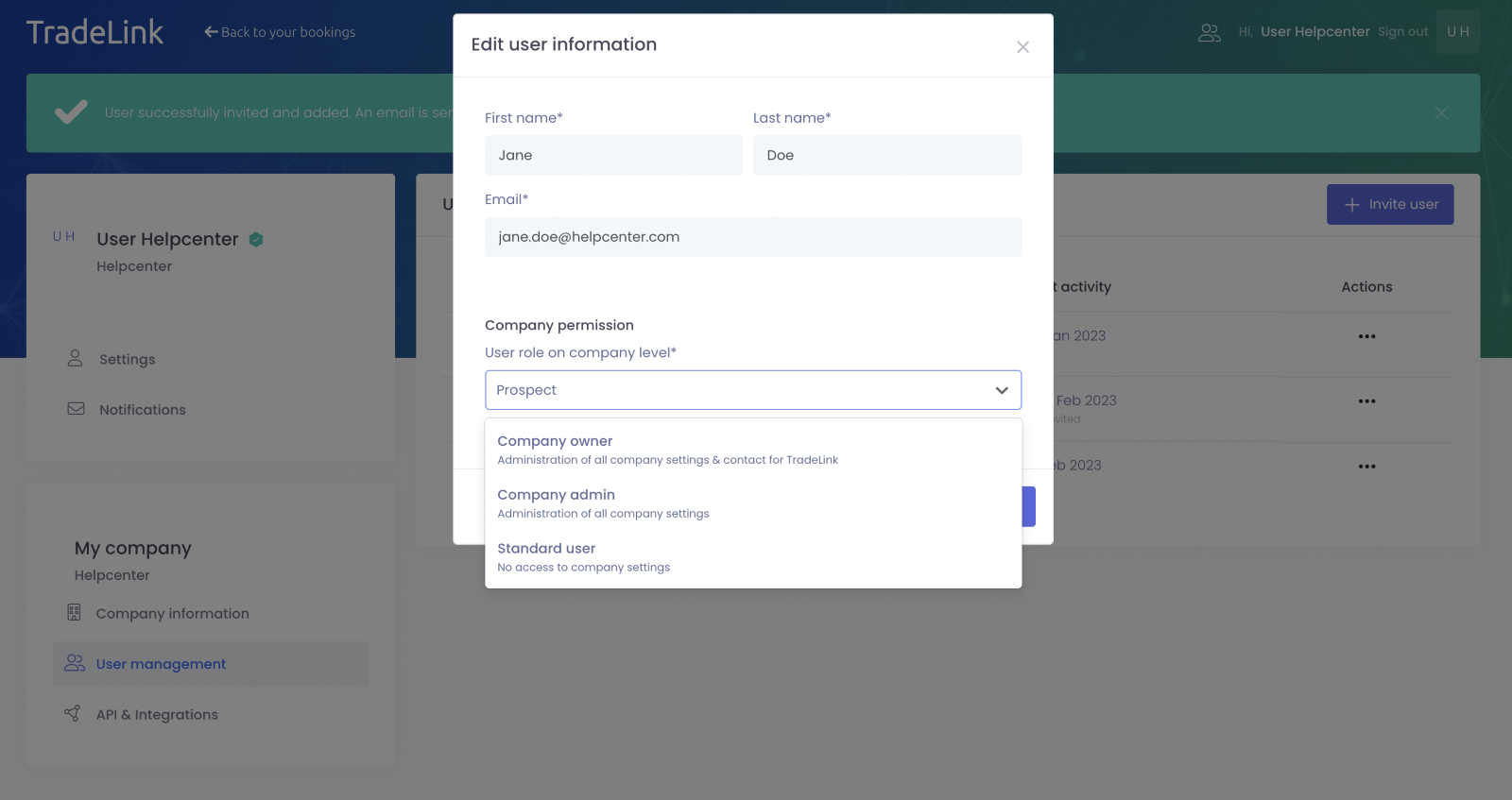
Company owner: administration of all company settings and contact for TradeLink
Company admin: administration of all company settings
Standard user: no access to company settings, optional access to user management
This means that all three user roles can book a slot with TradeLink and, depending on the settings, invite colleagues.
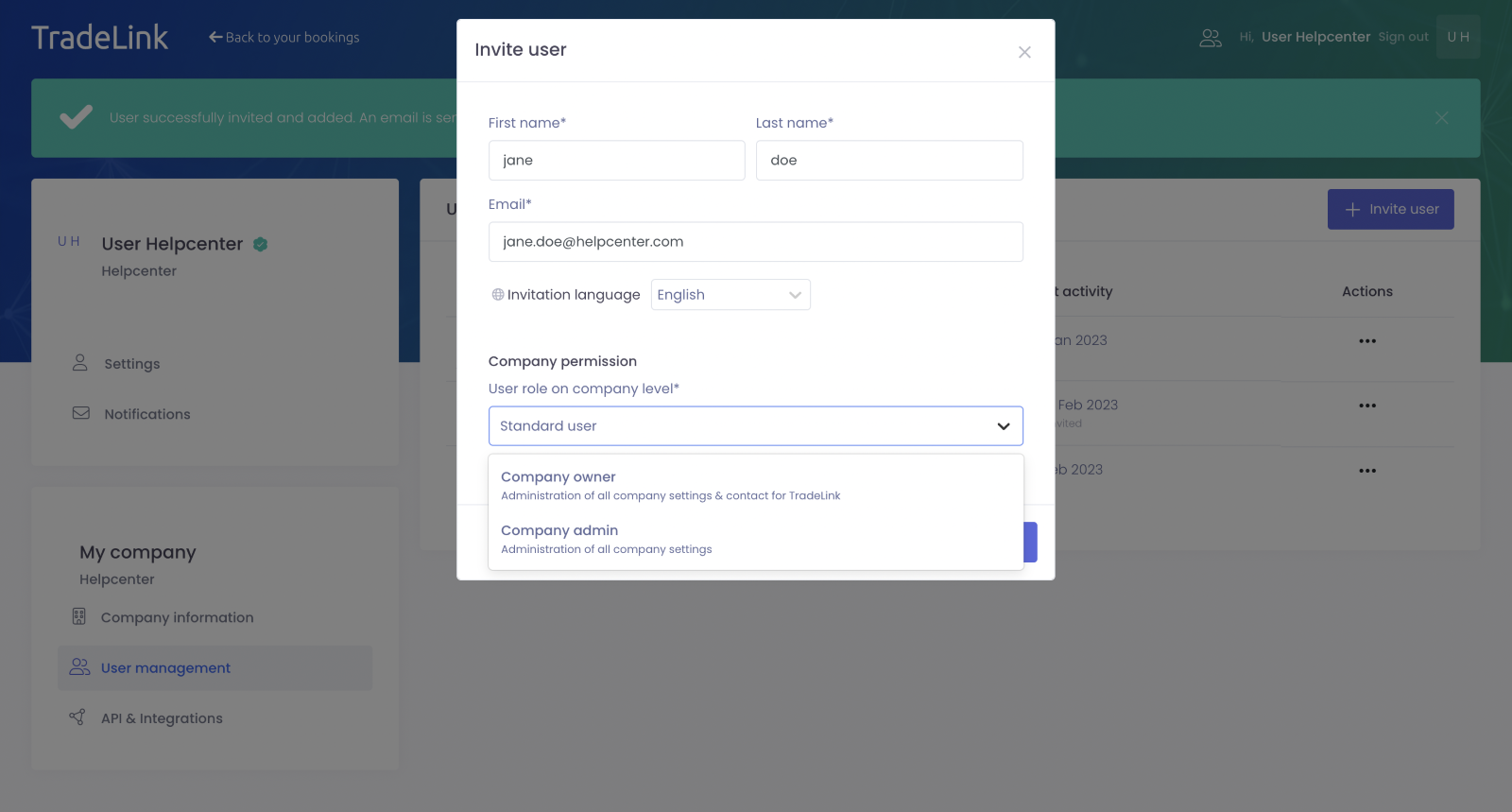
The fourth user role is the “Prospect”. This role is assigned to users who have not been personally invited to TradeLink, but have created a user account via the invitation link received from colleagues.
As a Prospect you will only see your own bookings, but not those of your colleagues.
You can find more information here:
💡How can I create a TradeLink account (without prior booking)
How do I customize the user roles of my colleagues?
As a company owner or admin, you can customize the roles of your colleagues via the “user management” setting. This is especially relevant for colleagues who have joined the company with the user role “Prospect”.
To do that, click on the three dots and select “Edit”.
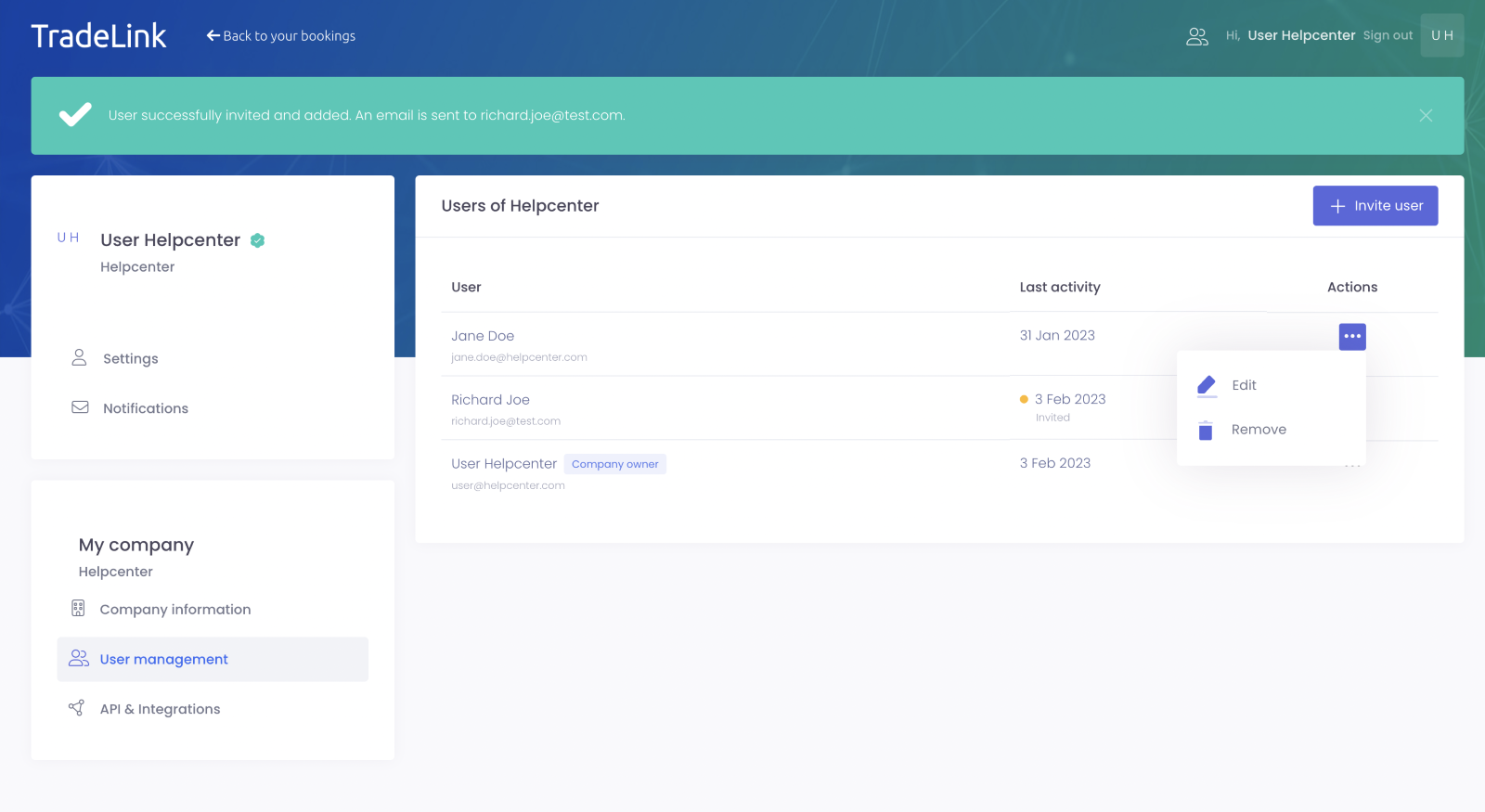
Under “Company permission” you can then change the user role and change it i.e. from “Prospect” to “Standard user”.
Click on “Save” to save the changes.
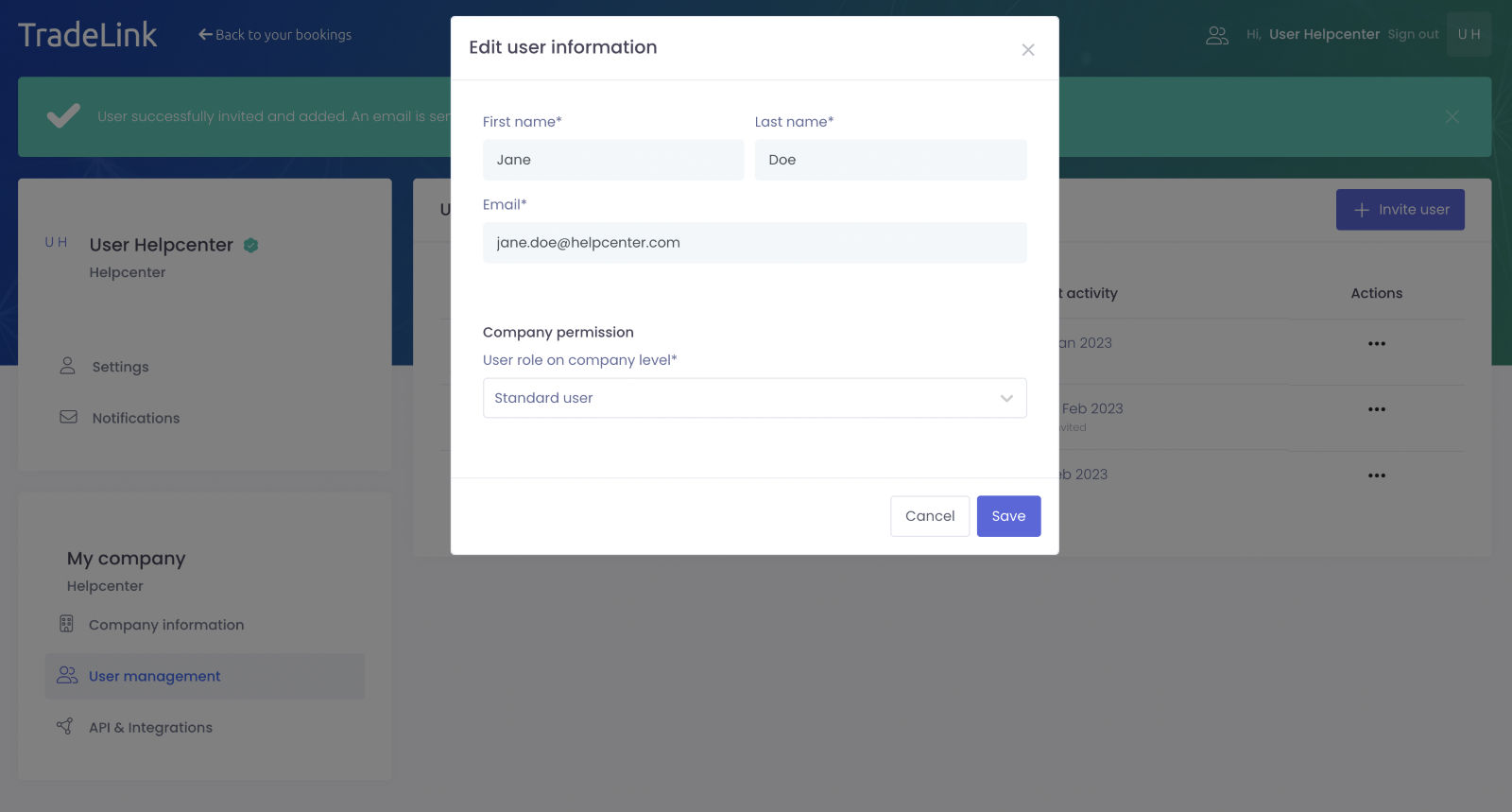
With a click on "Save" the new role for the user is stored in the system.
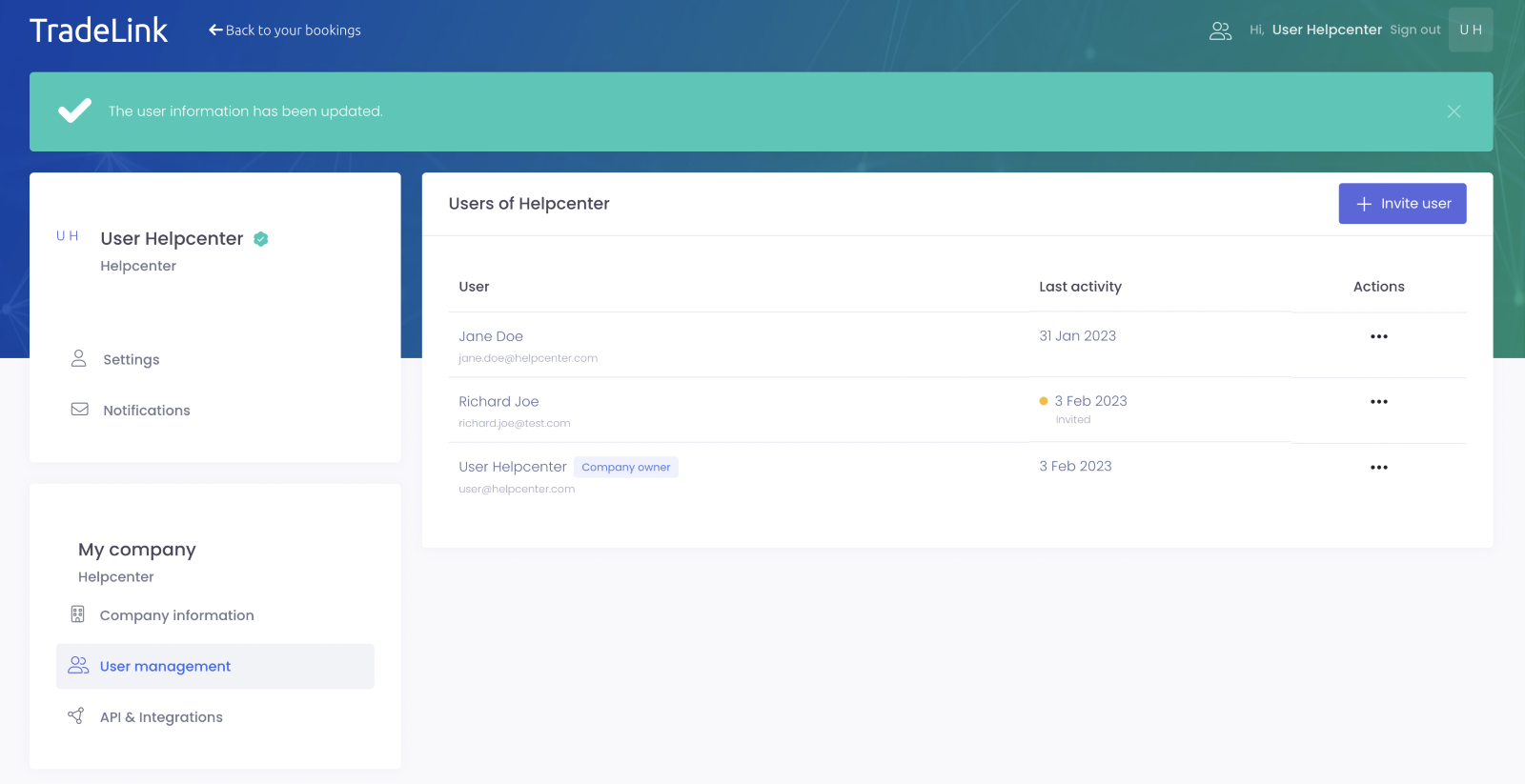
The user information has been updated and your colleagues have received new rights according to their user role.